How do I download my generated video?
Last updated: January 29, 2026
Context
After generating a video using the lip sync feature, you want to save the completed video to your device. You may be looking for the download option or experiencing issues with the download process.
Answer
There are several ways to download your generated video depending on your interface and situation:
Primary Download Method
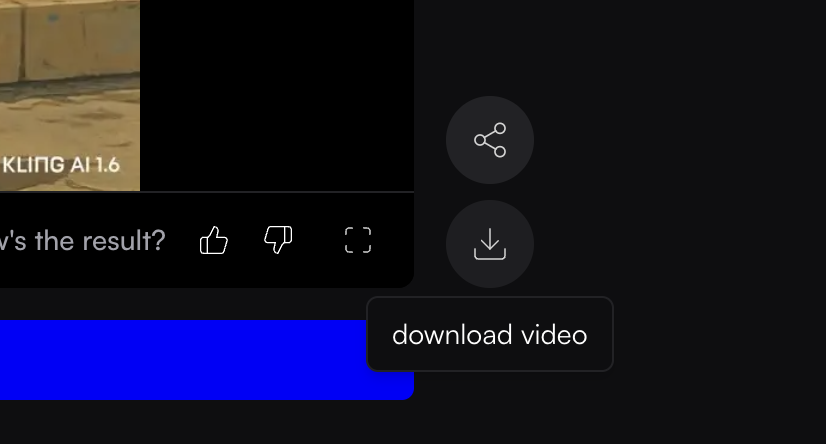
Look for the download button in your video interface:
Lite mode: The download button appears beside the video
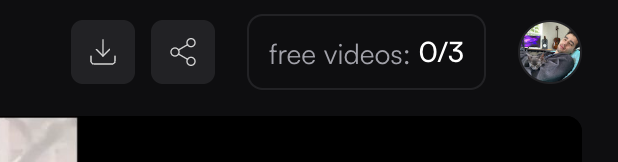
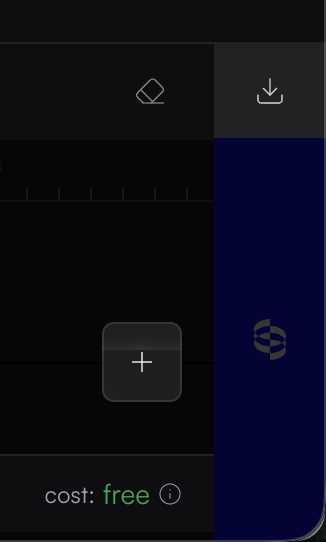
Pro mode: The download button is located at the top right or above the sync button in the bottom right
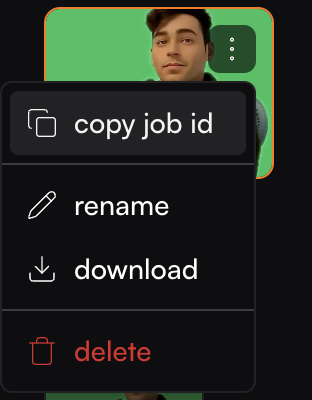
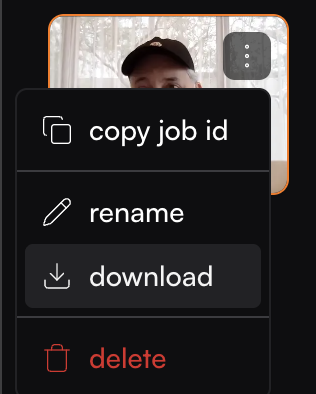
History view: You can also download videos in both lite and pro mode from the history view by clicking the 3-dot menu and selecting download
Important Notes
Draft vs. Generated: Only completed generations can be downloaded. Videos marked as "draft" need to be generated first by clicking the "Sync" button
Download time: Larger videos may take some time to download completely
File naming: Downloaded videos may save with the project name rather than a custom name you assigned
If you continue experiencing download issues after trying both methods, please contact support with your job ID, which you can find by clicking the three dots menu next to your video.