sync. Studio Workflow
Last updated: March 10, 2026
Once you press “Login” or “Try for free” button on our home page you land on page that looks like this that allows you to sign-up using either your Google or Github accounts
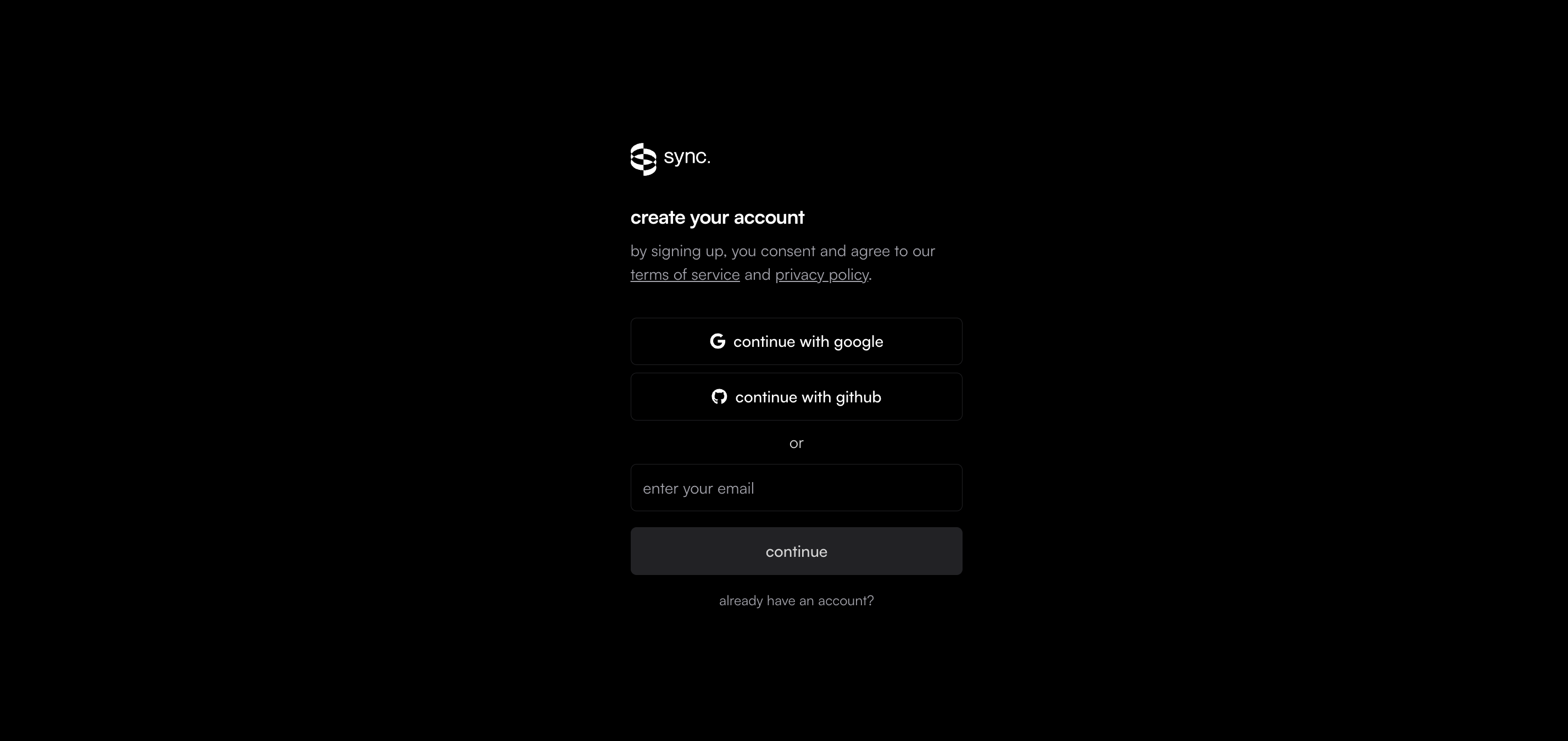
If you don’t have both you can just type in your email in “enter your email” section and press continue. This will send OTP the email you entered
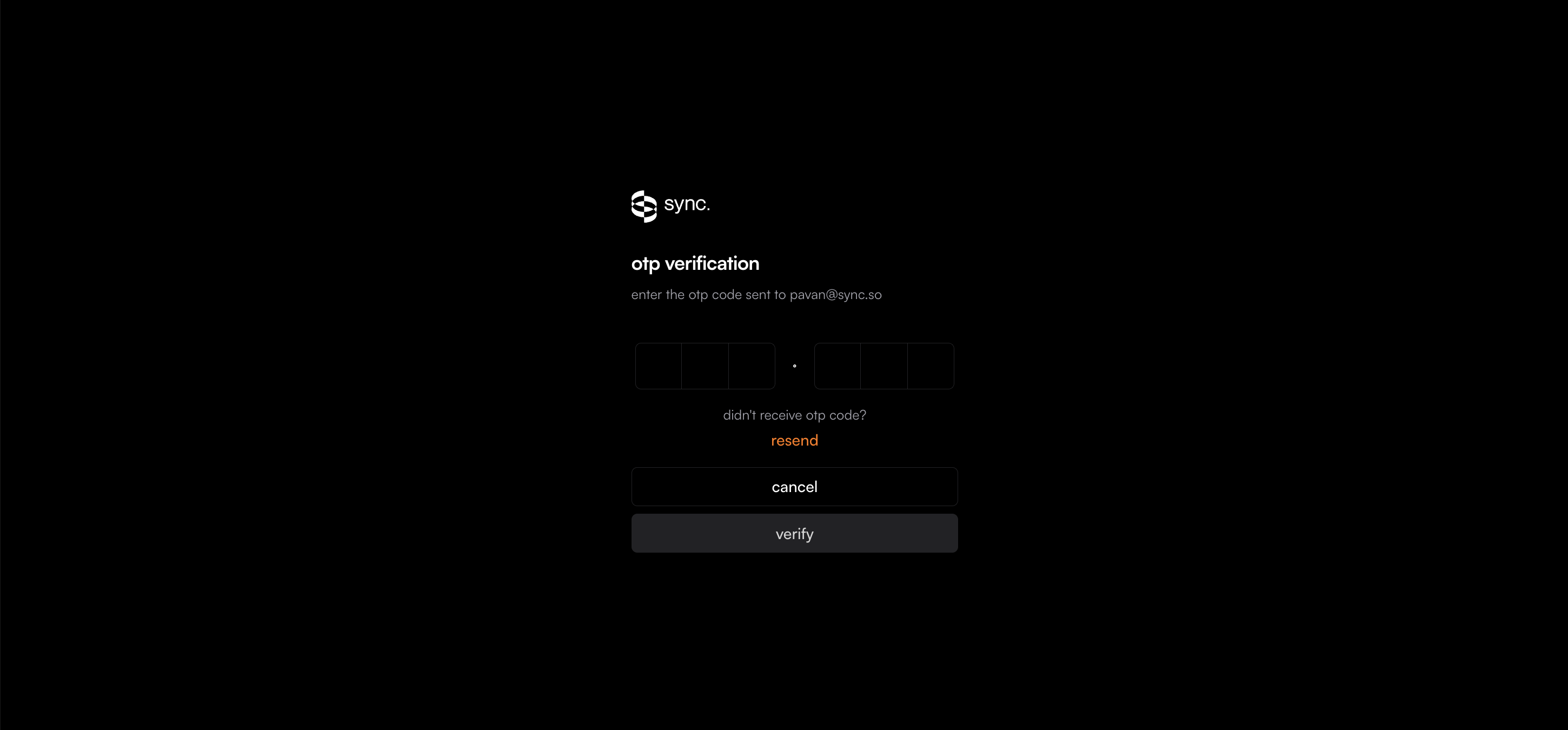
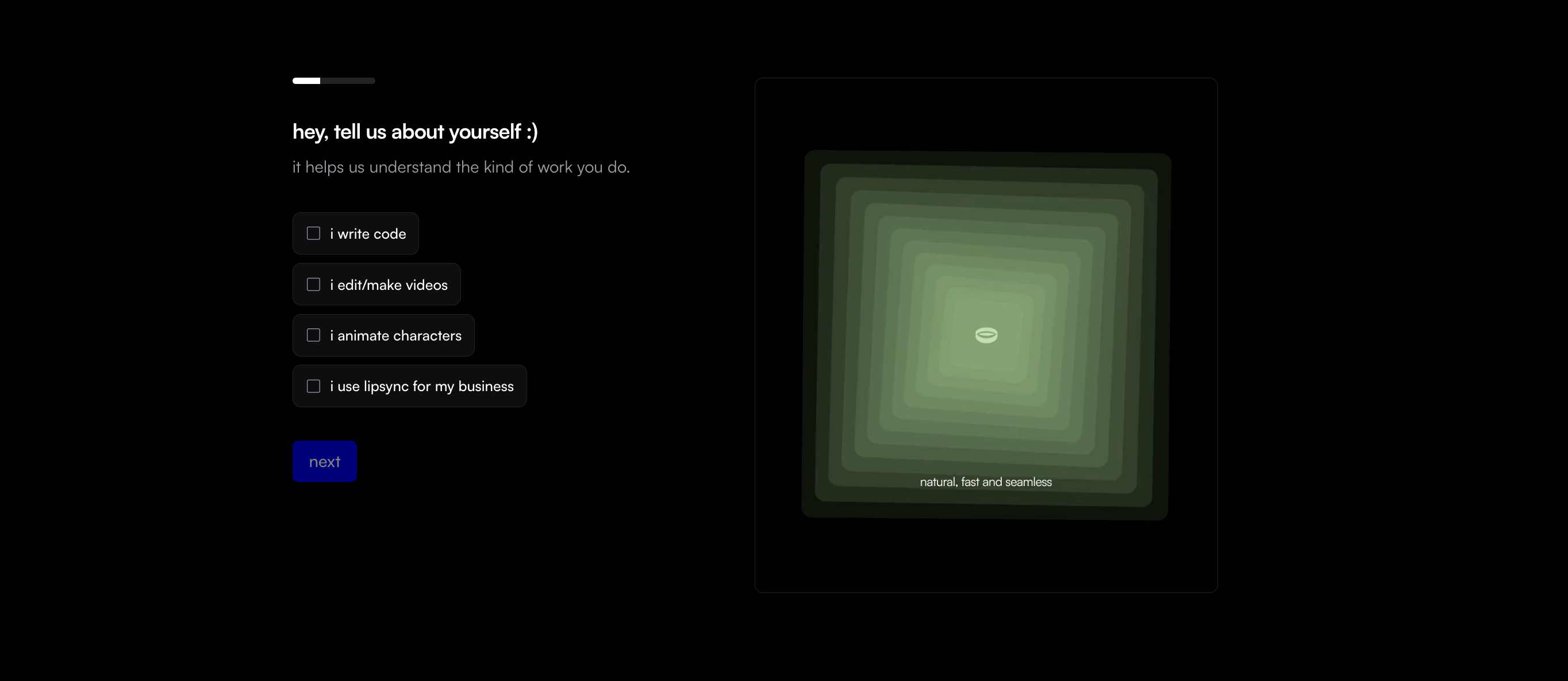
Once you enter OTP you go to onboarding steps
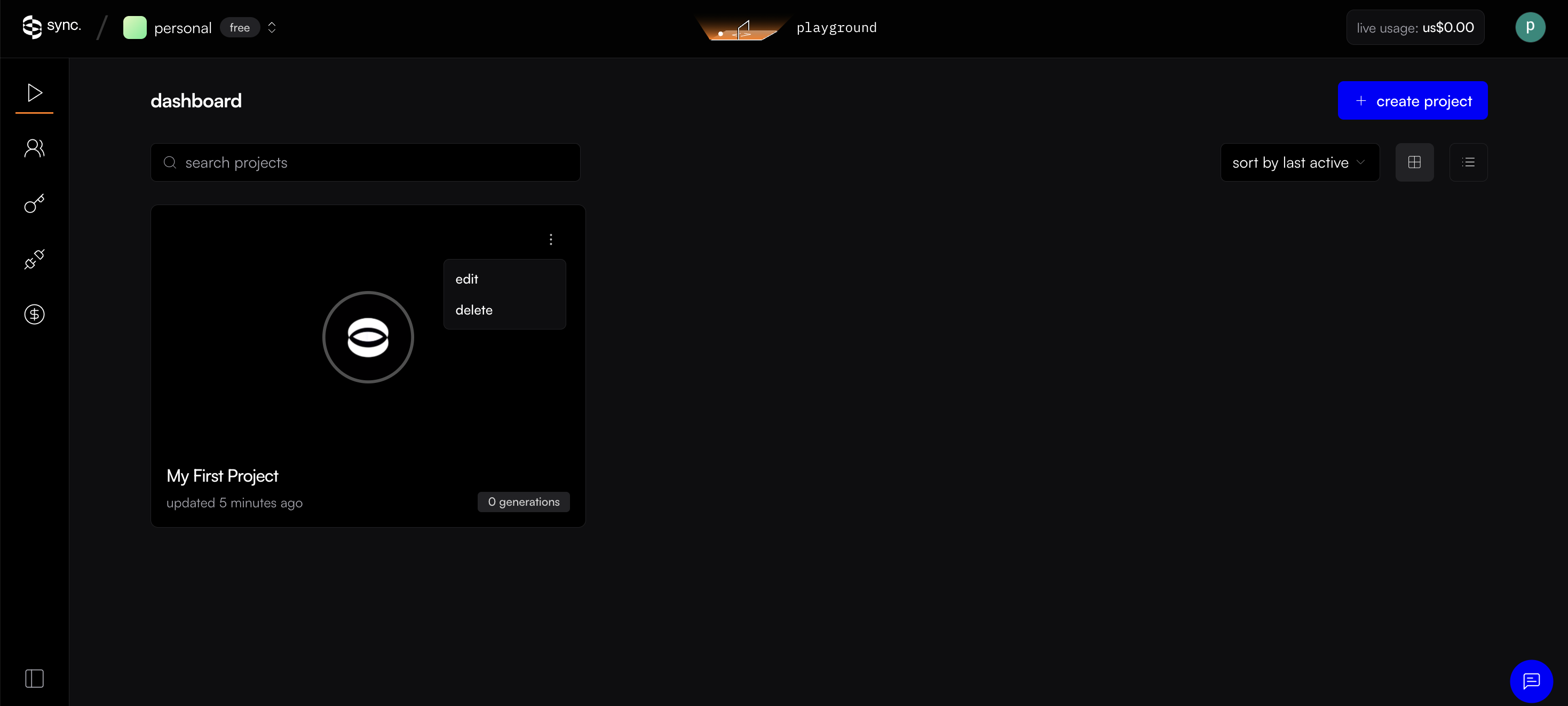
Once you finish onboarding you land on sync. dashboard that look like this from where you can click “my first project” to start using sync or “+create project” button to create a new project
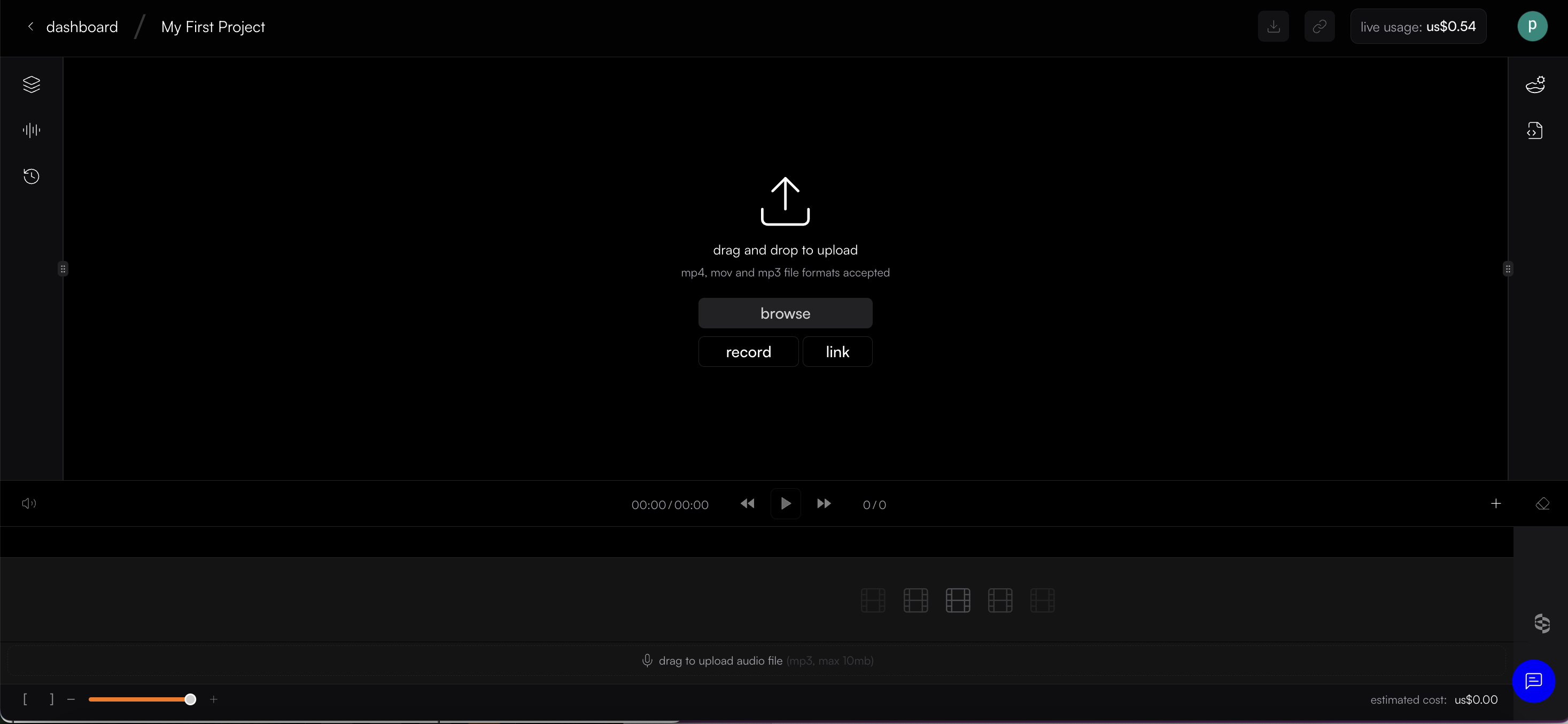
Once you click “My first project” you start seeing timeline editor view that allows you to upload your files. Just drag and drop videos/ audio of your choice
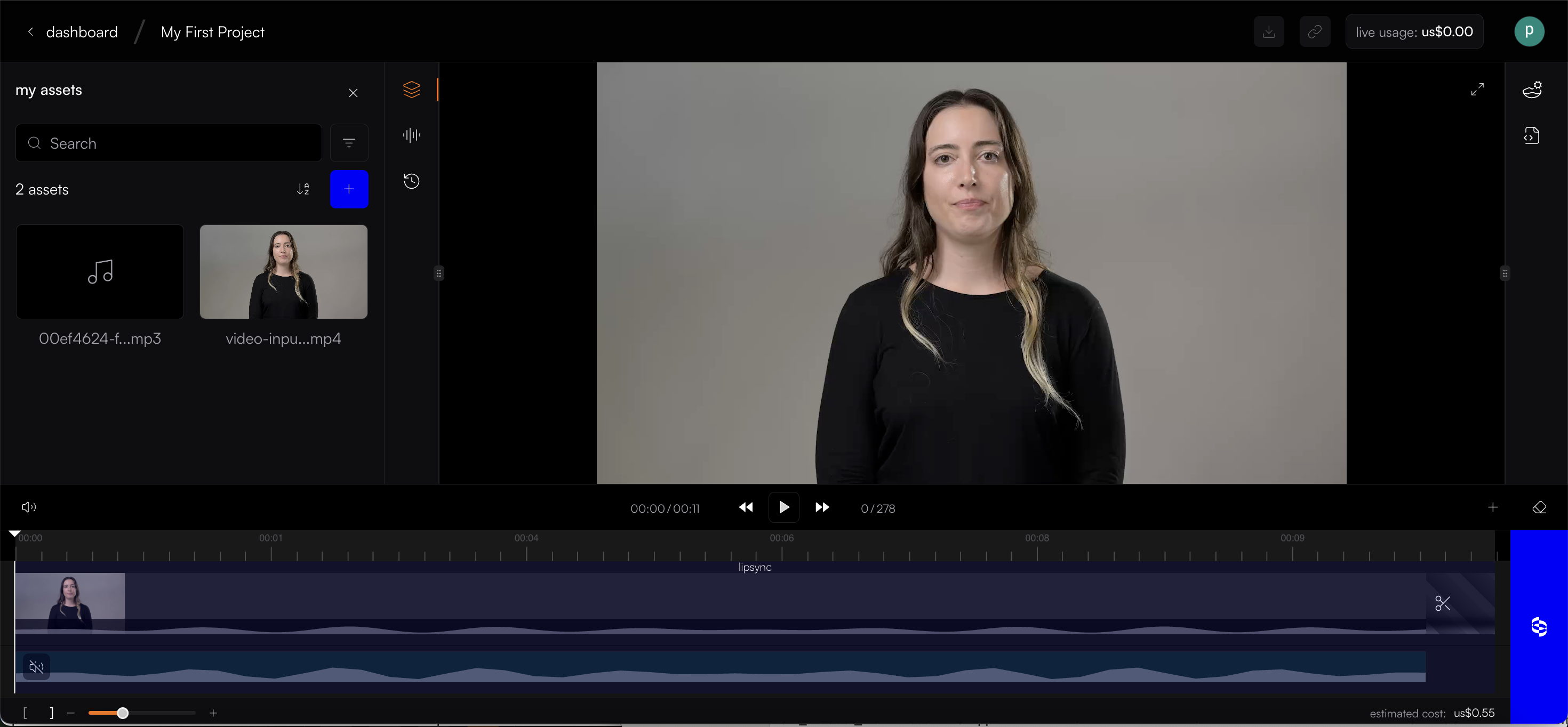
You can see the files you upload in “My assets section” for the future use and you don’t have upload same files again but you can just drag and drop those files to timeline from assets panel
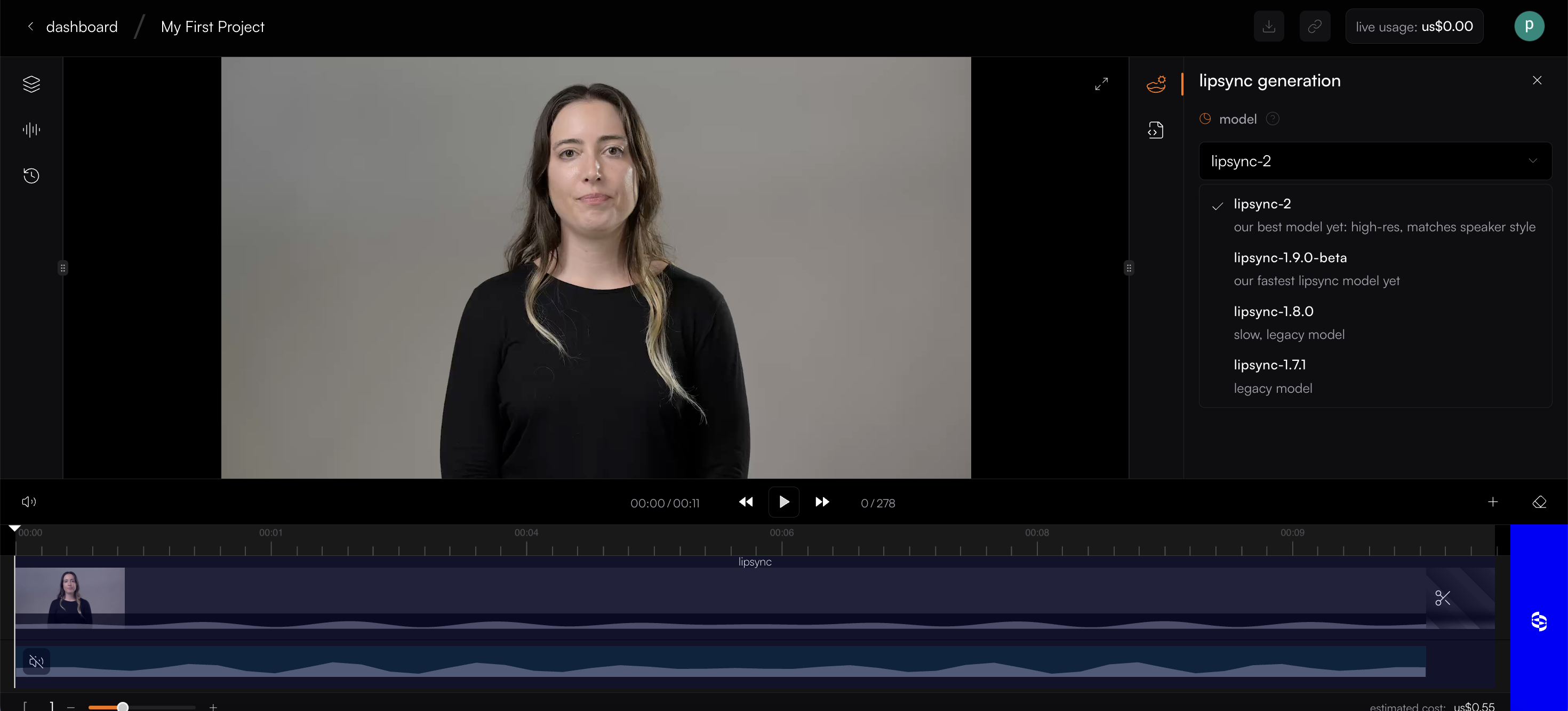
You can now select the model you want to use for lipsync from the panel on the right hand side. You can select the model from drop down based on the description for each model
If you select our latest model lipsync-2 you can also change the temperature. Temperature changes how expressive lipsync is. If you are seeing weak lipsync in your output (even though your source video has good lip movements) we would highly recommend you to increase temperature and reduce it if you see lipsync is little too exaggerated. Default remains 0.5
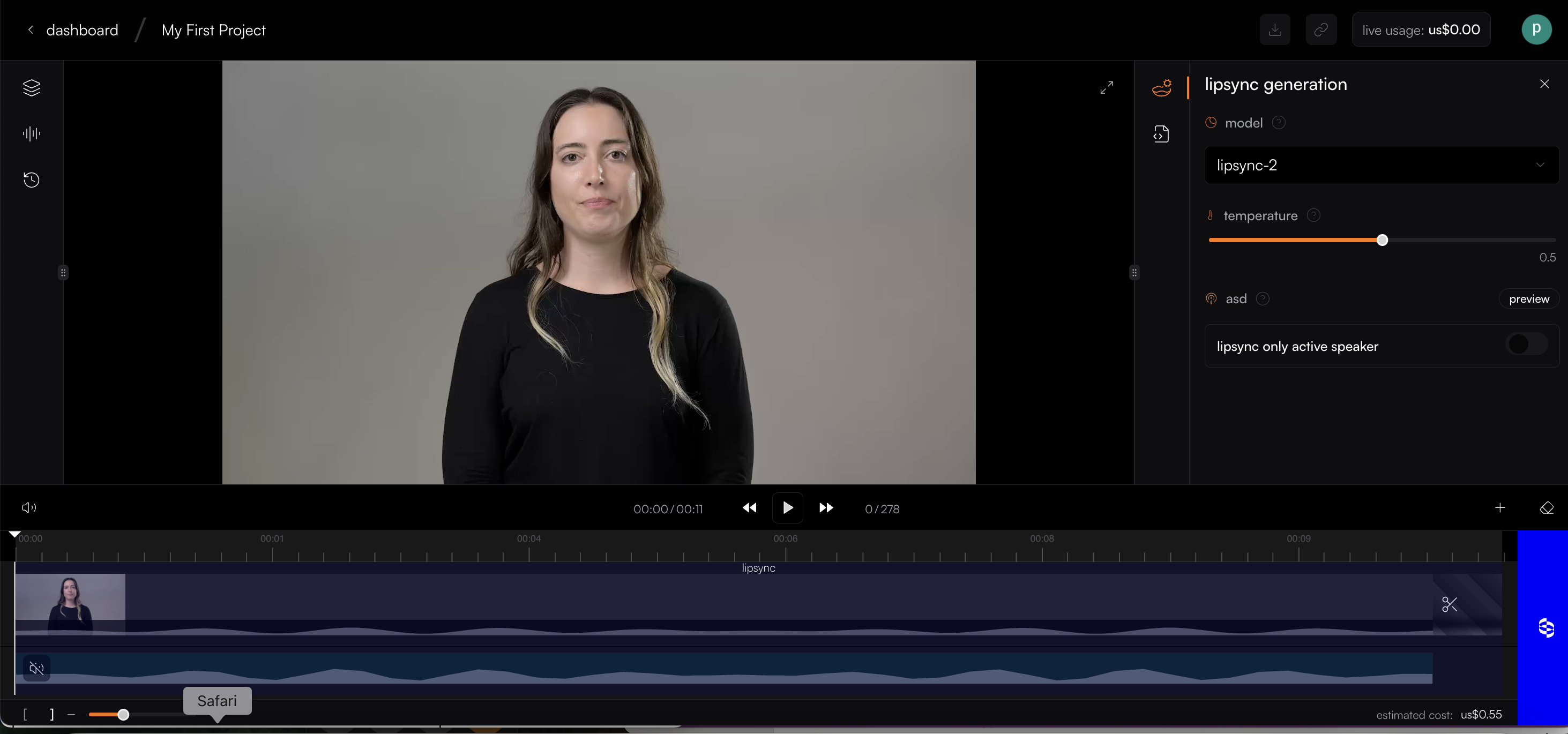
Below temperature you find “asd” toggle. You turn it ON if your use case is lip-syncing a translated video. For it work accurately, make sure the actors are speaking the original language in the source video and not target/ translated language
In case, you only have a video but don’t have an audio and willing to use text speech feature on the studio. You can find this feature on left side panel below the assets icon. Once you get there you will find list of default voices you can use from. Just type the script and press generate button to preview the speech generated. If you like it click download icon there and add the audio file to timeline (which will also be saved in assets once uploaded to timeline)
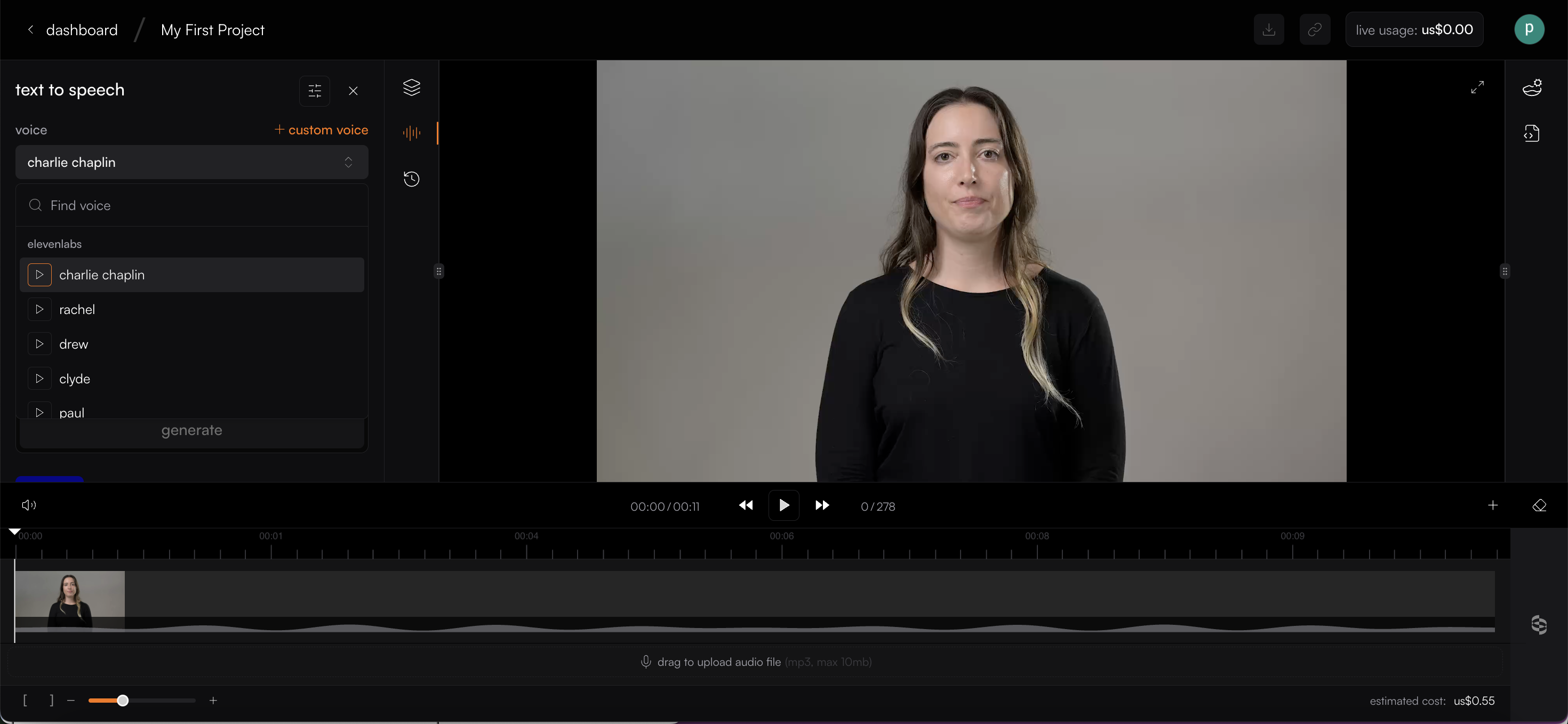
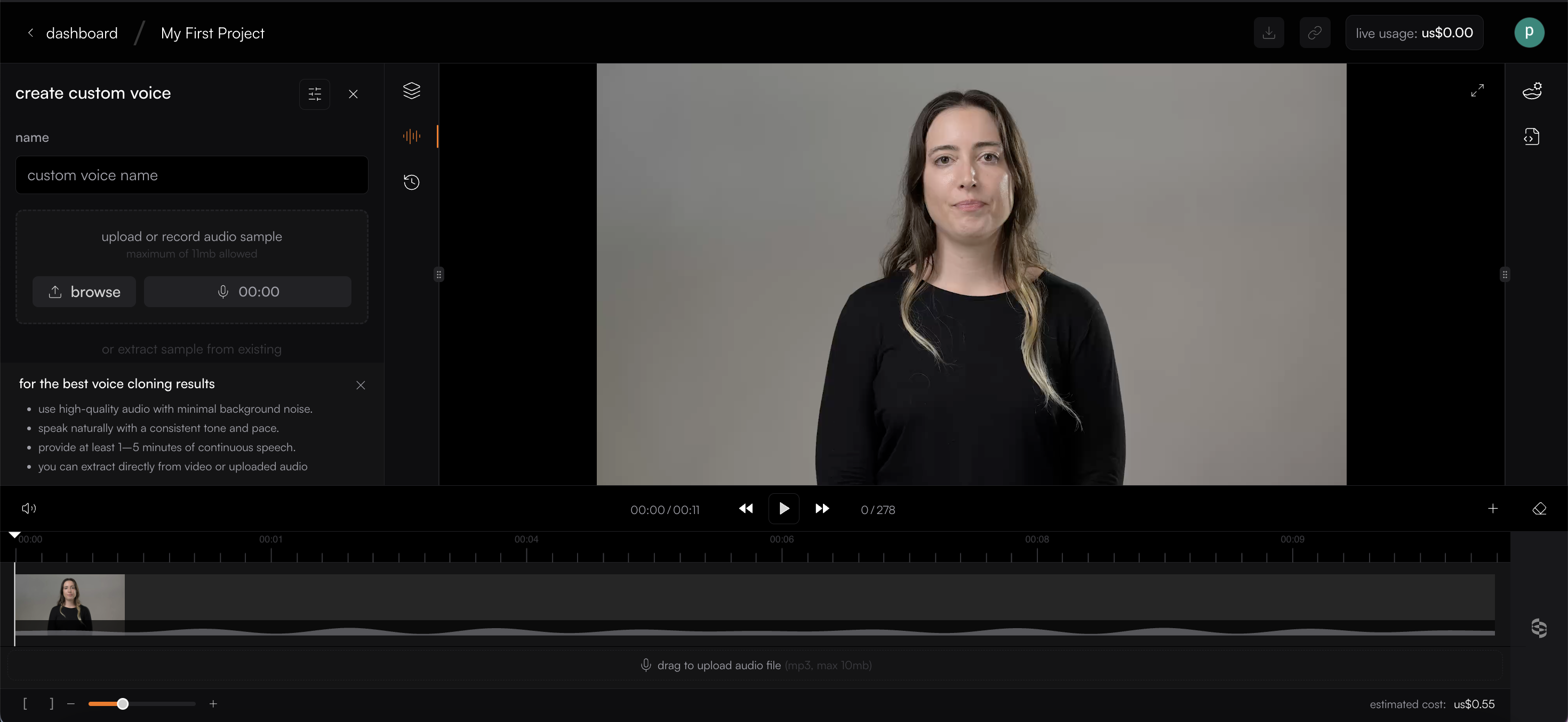
If you want a custom voice or clone the voice of the actor in the video? Just click on the +custom voice button on top of the same panel and it opens a new panel that allows you to upload an audio that you want clone. Follow the instructions written below for best voice clones. Once you upload audio remove the instructions and you can see save button. Also give a name to your custom voice on the top to use it in the future. You can also adjust “stability” and “similarity” of the voice by clicking voice settings button on the top
Once you upload both video and audio to the timeline you can click “blue button” with sync logo on the bottom right corner to start lipsync generation
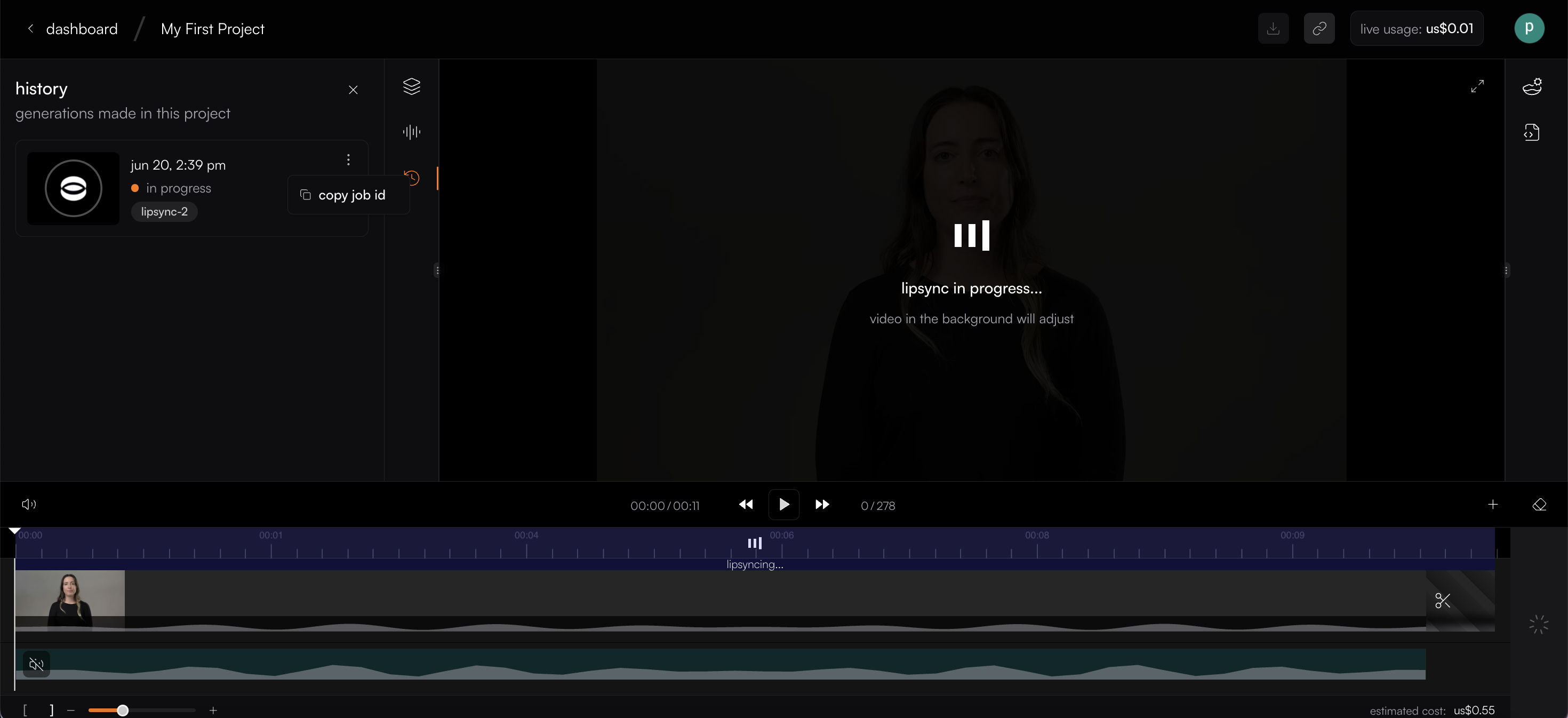
Once you submit the job you can find the status of it by clicking History button on the left side panel below audio section. You can also check the Job ID by clicking on the three dots. This Job ID is really useful to refer to particular job when you need support
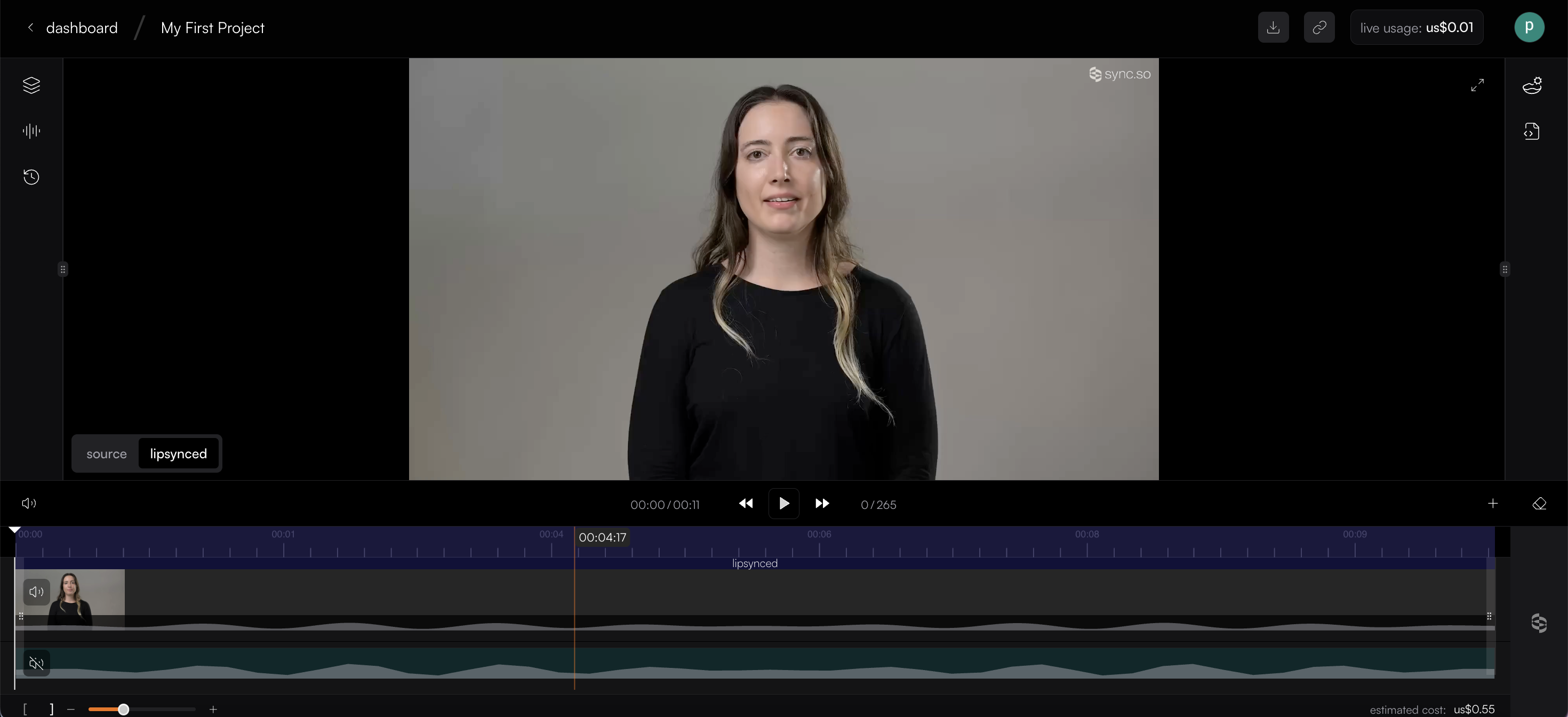
once your job is generated it looks like this where you can watch the source video or download the lipsynced video on the top. To generate a new job click the erase button or delete both video and audio by going to source
Hope this helps! Feel free to write to us if you have any questions